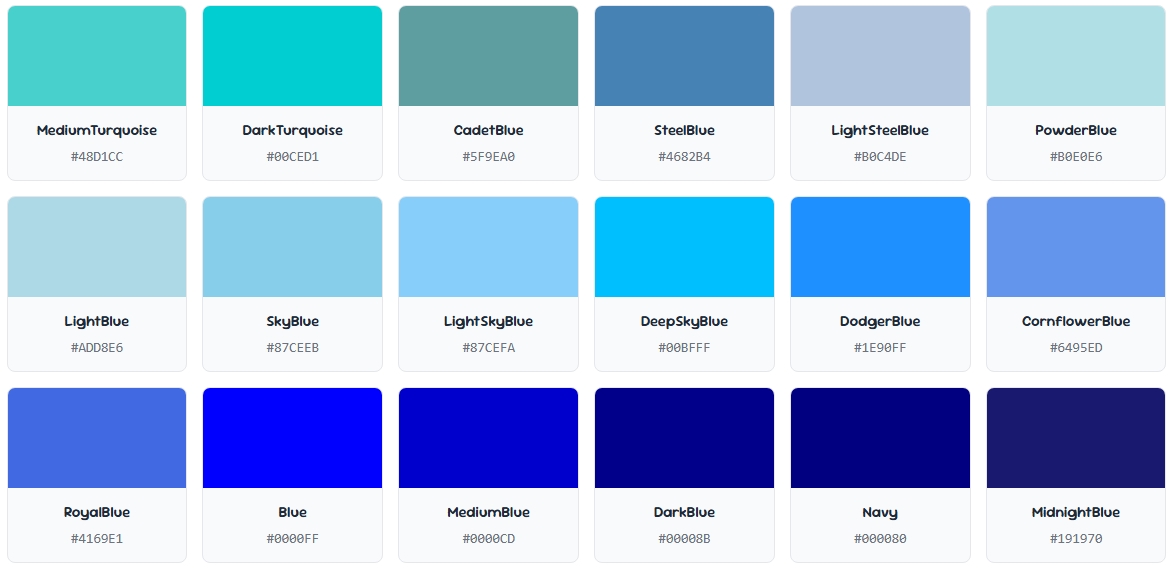
Ever seen a color and had no idea what to call it? Whether it's a soft blue-green from a photo or a specific shade in a client's brand guide, a good color-finder takes the guesswork out of naming colors.
In this guide, we'll cover 5 best ways to identify any shade instantly and get its exact name and code.
What Is a Color-Finder?
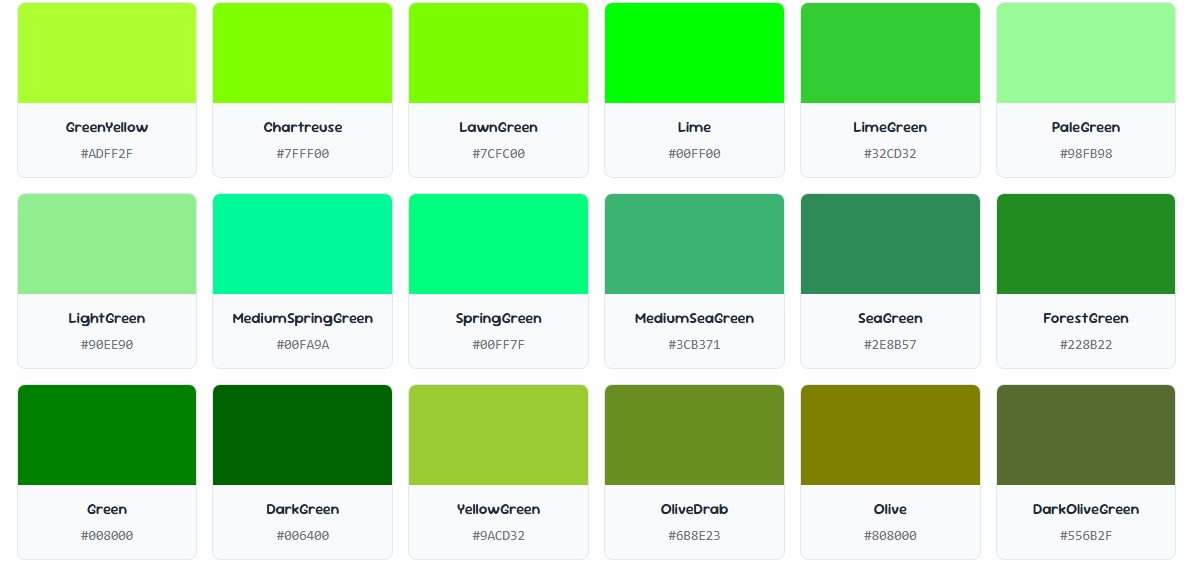
A color finder is a tool that takes a color — whether it's a code, an image, or a pixel on your screen — and matches it to its closest named color from a database of hundreds or thousands of shades.
Instead of manually searching through color charts, a color finder does the matching instantly, saving designers, marketers, and hobbyists significant time.
This is especially useful when writing product descriptions, building style guides, or simply trying to describe a color accurately to someone else.
1. Match a HEX or RGB Code to a Named Color
If you already have a HEX or RGB code — say from a design file or a Color Picker — a color finder can instantly tell you the closest matching named color, like "Slate Gray" or "Steel Blue."
This removes the ambiguity of trying to describe a code in plain language.
2. Identify Colors From an Uploaded Image
Sometimes you don't have a code at all — just a photo. Upload the image into a color finder, click on the exact pixel you want identified, and it will return both the code and the closest named color.
This method is popular among interior designers matching a photo of fabric, wall paint, or furniture to a named shade.
3. Sample Colors Directly From Your Screen
A color finder with an eyedropper feature lets you hover over anything visible on your screen — a website, an app, a video frame — and instantly get the color's name.
This is a quick way to identify a competitor's brand color or match an element you saw somewhere online without digging through code.
4. Search by Approximate Shade Name
Not sure of the exact code but have a rough idea of the shade? Many color finder tools let you search loosely — typing something like "teal" or "burnt orange" — and browse a list of closely related named colors with their exact codes.
This is helpful during the early brainstorming phase of a design project.
5. Cross-Check Against Multiple Naming Systems
Color names aren't universal — a shade might be called "Cerulean" in one system and "Sky Blue" in another. A thorough color finder cross-references multiple naming standards, including CSS/X11 color names and general design terminology, so you get the most widely recognized name for your shade.
If you need brand-specific accuracy, pair this with our Color Wheel guide to understand how named colors relate to each other on the spectrum.
Common Color-Finder Mistakes to Avoid
- Assuming one universal name exists: The same shade can have multiple valid names depending on the naming system used.
- Ignoring lighting conditions in photos: A color identified from a poorly lit photo may not match the true shade — use well-lit images when possible.
- Not verifying contrast for web use: A named color that looks nice may still fail accessibility standards — always check it with a Contrast Checker before publishing.
- Skipping colorblind considerations: According to the National Eye Institute , color vision deficiency affects a significant share of men, so test important color choices with a colorblind simulator.
Final Thoughts
A reliable color finder turns a confusing HEX code or blurry memory of a shade into a clear, usable color name in seconds.
Whether you're matching a code, sampling from an image, or browsing by rough shade name, these 5 methods will help you identify any color instantly and communicate it clearly to clients, teams, or customers.