Image Color Picker Guide: 5 Best Ways to Extract Perfect Palettes
A great color palette often already exists — in a sunset photo, a fabric swatch, or a product shot you love.
An image color picker lets you pull those exact shades out of any picture and turn them into usable HEX or RGB codes.
In this guide, we'll cover 5 best ways to extract perfect palettes from your images.
What Is an Image-Color-Picker?
An image color picker is a tool that lets you upload a photo and extract exact color values from any point in the picture, or automatically detect the image's dominant colors.
Instead of guessing HEX codes by eye, an image-color-picker gives you precise, reproducible values straight from the source photo.
This is widely used by interior designers matching paint to a photo, brand strategists building palettes from mood boards, and developers pulling colors from product photography for e-commerce sites.
1. Upload a High-Quality Image
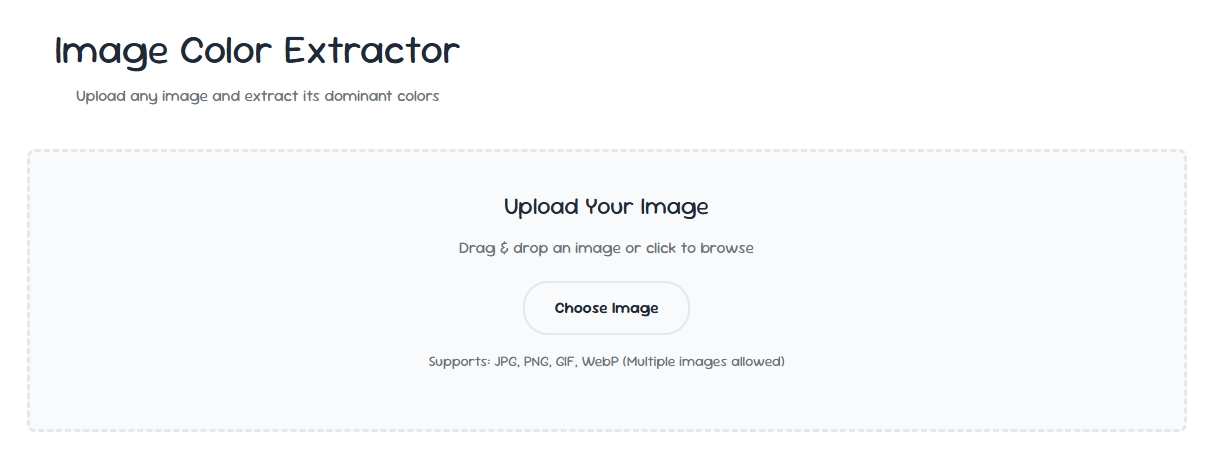
The accuracy of any image color picker depends heavily on the quality of the photo you upload. Poor lighting, heavy compression, or filters can shift the true colors in a photo.
Always use a well-lit, unfiltered, high-resolution image for the most accurate color extraction results.
2. Click Individual Pixels for Precise Colors
Once your image is uploaded, use the image color picker's eyedropper feature to click on the exact pixel you want to sample.
This gives you the precise HEX and RGB value at that single point — ideal when you need one specific shade, like the exact blue of a logo in a screenshot.
3. Extract Automatic Dominant Color Palettes
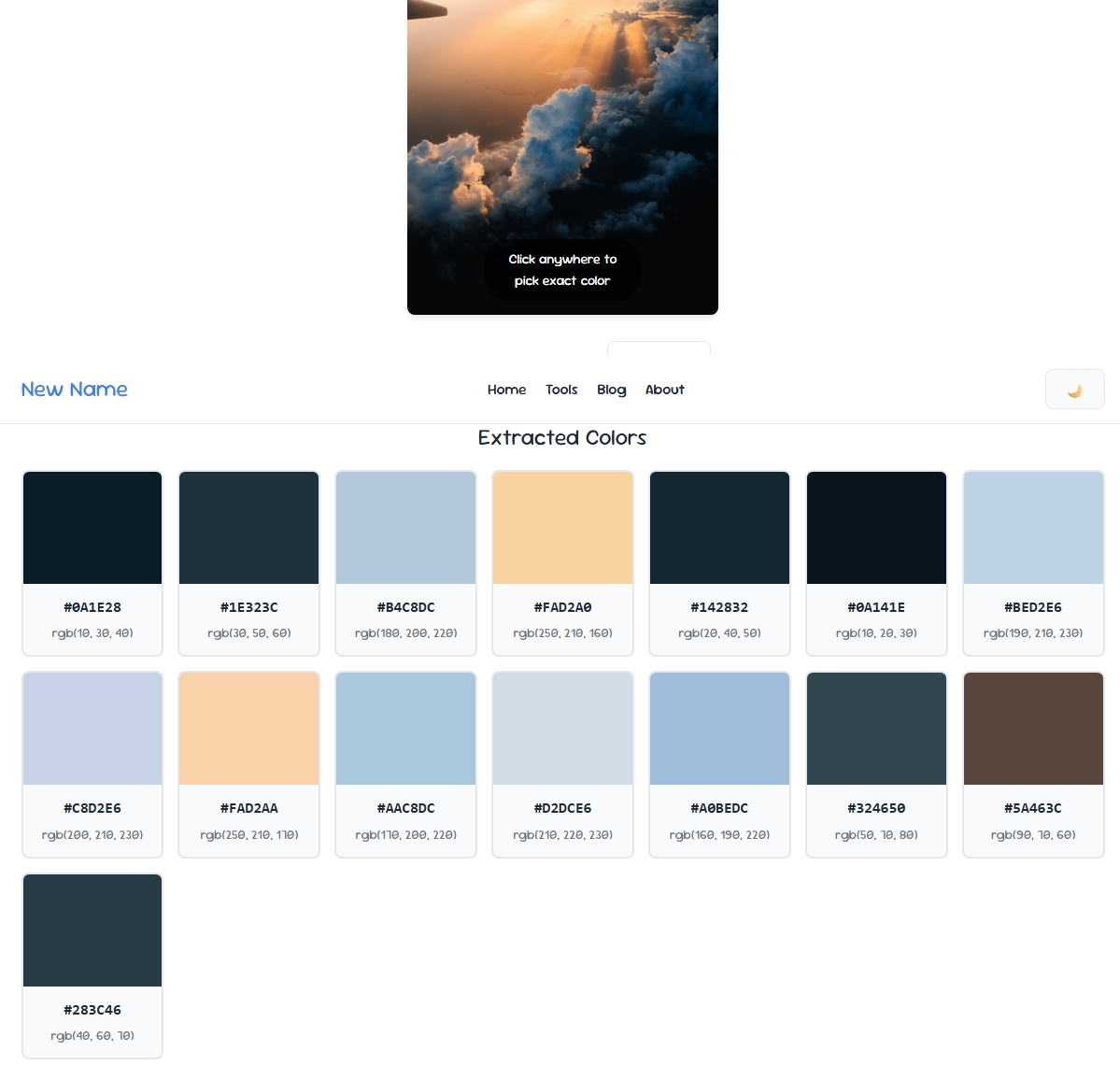
Instead of clicking one pixel at a time, most image color picker tools can automatically analyze the entire photo and generate a palette of its dominant colors.
This is perfect for quickly turning a nature photo, product image, or piece of art into a ready-to-use color scheme for a website or brand.
4. Match Extracted Colors to Named Shades
Once you've extracted a color, it helps to know its actual name — not just its code. Run your extracted HEX value through a Color Finder to get the closest matching named color, which makes communicating your palette to clients or teammates much easier.
5. Build a Full Palette From Multiple Images
For larger branding projects, extract colors from several reference images — like a mood board — and combine the best shades into one cohesive palette.
Use a Color Palette Generator to organize and refine the combined shades into a polished, exportable palette.
Common Image Color Picker Mistakes to Avoid
- Using low-resolution images: Blurry or heavily compressed photos distort true color values — always upload the highest quality version available.
- Ignoring lighting conditions: Shadows or artificial lighting in a photo can shift extracted colors away from the true, real-world shade.
- Skipping accessibility checks: A beautiful extracted palette might still fail readability standards — verify with a Contrast Checker before using it on text.
- Not saving your extracted palette: Export or save your colors immediately, since re-uploading the same image later may pick slightly different pixels.
Final Thoughts
An image color picker turns any photo into a usable, precise color palette in seconds — no more eyeballing shades or guessing codes.
Whether you're sampling a single pixel or extracting a full dominant palette, these 5 methods will help you get accurate, professional results every time.
Pair it with a color finder and contrast checker for a complete color workflow.